
How to Fix OpenGL Errors on Windows 10/11 (Complete Guide to Installing OpenGL Support) | free glut error fix error and code blocks install OpenGL C++ / computer graphics
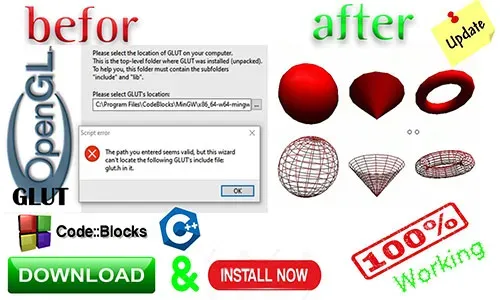
OpenGL is one of the most widely used graphics APIs in the world. Many PC games, 3D applications, emulators, and programming projects depend on it. But Windows users often face errors such as “Your graphics driver does not appear to support OpenGL”, “OpenGL 2.0 required,” or application crashes caused by missing OpenGL libraries.
If you are seeing these issues, don’t worry — OpenGL itself does not install like regular software. Instead, it works through your graphics driver. In this guide, you’ll learn exactly how to fix OpenGL errors, how to install missing OpenGL support, and how to properly set up OpenGL libraries for programming or game development.
This article covers Windows 10 and Windows 11 in detail.
What Is OpenGL and Why Do You Get Errors?
OpenGL (Open Graphics Library) is a cross-platform graphics API used for rendering 2D and 3D content. Windows does not provide the latest versions of OpenGL by default — instead, your GPU manufacturer installs and updates it.
That means:
✔ OpenGL comes with NVIDIA, AMD, or Intel graphics drivers
✔ You CANNOT download OpenGL separately
✔ If your driver is outdated or unsupported, OpenGL errors appear
✔ If your hardware is too old, some versions of OpenGL won’t work
So most OpenGL problems come from:
- Outdated GPU drivers
- Missing manufacturer graphics software
- Unsupported graphics hardware
- Corrupted system files
- Incorrect developer/library setup (for C/C++ users)
Common OpenGL Errors on Windows
You may experience one or more of these errors:
- Your graphics driver does not appear to support OpenGL.
- OpenGL 2.0+ required. Install a driver providing OpenGL support.
- Application crashes while launching games or emulators
- Blank screen or black window in 3D apps
- Code::Blocks, Visual Studio, or C++ OpenGL projects failing to run
- Freeglut or GLEW errors while developing OpenGL apps
All of these can be fixed with the steps below.
How to Fix OpenGL Errors on Windows 10/11
Follow these steps in order. Each step solves different levels of OpenGL issues.
Step 1: Check Your Graphics Hardware
OpenGL support depends on your GPU.
- Press Win + R
- Type dxdiag
- Go to the Display tab
You will see one of the following:
- NVIDIA GeForce / RTX / GTX
- AMD Radeon
- Intel UHD / Iris / Xe
- Microsoft Basic Display Adapter ← This means no proper driver installed
If you see Microsoft Basic Display Adapter, OpenGL will NOT work properly. Installing the correct driver will instantly fix OpenGL errors.
Step 2: Install or Update Your GPU Driver (Most Important)
For NVIDIA Users
- Visit NVIDIA Driver Downloads
- Select your GPU model and Windows version.
- Click Search, then Download the latest driver.
- Run the installer and follow the prompts.
- Restart your PC.
For AMD Users
- Go to AMD Drivers & Support
- Select your GPU model and Windows version.
- Click Submit, then Download.
- Install the driver and restart your PC.
For Intel Graphics Users
- Visit Intel Download Center
- Select your GPU or chipset and Windows version.
- Download, install, and restart your PC.
💡 Tip: After updating the driver, use a tool like OpenGL Extensions Viewer to confirm your system supports the required OpenGL version.
Step 3: Check Your OpenGL Version
Some software requires specific OpenGL versions (e.g., 2.0, 3.3, 4.6).
- Download OpenGL Extensions Viewer (free tool)
- Check your GPU’s supported OpenGL version and extensions
- If your version is too low, update your driver or consider hardware upgrade
Step 4: Repair Corrupted System Files
If your GPU driver is correct but errors persist, system files may be corrupted.
- Open Command Prompt as administrator.
- Run the System File Checker:
Step 5: Install Missing Libraries (For Developers)
If you're trying to run or build OpenGL C/C++ projects in Code::Blocks, Visual Studio, or MinGW, you may need additional libraries:
Essential OpenGL Development Libraries
- freeglut (OpenGL Utility Toolkit replacement)
- GLEW (OpenGL Extension Wrangler)
- GLFW (Modern OpenGL window & input library)
- GLUT (Older version of freeglut)
Steps for Installing Freeglut or GLEW
- Download the library package
- Copy header files to:
- C:\Program Files\CodeBlocks\MinGW\include
- Copy
.libor.afiles to thelibfolder - Add linker settings:
- -lfreeglut -lglew32 -lopengl32
- Copy
.dllfiles to your project folder or Windows System32/SysWOW64
After linking correctly, your OpenGL code will run without missing-library errors.
Step 6: Fix “OpenGL 2.0 or 3.0 Required” Errors
Some older Intel GPUs (2010–2013) only support OpenGL 1.4–2.0 and cannot run newer applications.
Your options:
- Install the latest possible driver
- Use the Mesa 3D OpenGL software renderer (slow but works as last option)
- Upgrade graphics hardware
If your GPU is extremely old, upgrading is the best long-term solution.
Step 7: Update Windows
Sometimes Windows updates include GPU compatibility fixes.
Go to:
Settings → Windows Update → Check for updates
Install everything and restart your system.
Freeglut necessary download file
Bonus: Fix OpenGL Errors in Popular Games & Emulators
Minecraft OpenGL errors
- Update graphics driver
- Turn OFF "Use VBOs"
- Allocate more memory to the game
PCSX2 / Dolphin / PPSSPP
- Install the correct GPU driver
- Reset emulator video settings
Blender / Unity / Unreal
- Update drivers
- Ensure supported GPU (OpenGL 4.3+ required for latest Blender)
For better understanding, please follow the full video step by step.
When Your GPU Is Too Old for OpenGL
If your graphics card does not support modern OpenGL versions, you may see permanent errors. Common outdated GPU models:
- Intel HD Graphics 2000/3000
- NVIDIA GeForce 6/7/8 series
- AMD Radeon HD 4000 series
In these cases, you must upgrade your hardware or use the Mesa software renderer (but performance will be slow).
✔ Update your graphics driver (MOST IMPORTANT)
✔ Check GPU support with OpenGL Extensions Viewer
✔ Install freeglut / GLEW / GLFW for development
✔ Repair Windows system files if necessary
✔ Upgrade hardware if your GPU does not support modern OpenGL
Once these steps are completed, your PC should run OpenGL games, applications, and programming projects smoothly without crashes or errors.


![How to change Facebook page name on pc or laptop [UPDATE 2024]](https://blogger.googleusercontent.com/img/b/R29vZ2xl/AVvXsEhJPH2svLhgT04Q36-rTcUAb9kdjJD8w5ZU2t53Zyo6Dxu4G6axF-iK1g5fvRrE7Ri6WLcy6iTMovzR9e_JNeGlHqqvWjAt5Ve9-ps1c6PbmqoZ0_UskV9Pe4ulXnTtQdYjO-RX51w125sKpQfUeUGOyr84fmkyUOvVt0y6kKBd7wQj-WANzt4BrJETnUQy/s72-c/change-fb-page-name.jpg.webp)


No comments:
Post a Comment